SYNCROOM: what to send — mic, computer playback or DJ gear (Mac and Windows)
What you set up in SYNCROOM depends on what you send: a mic or instrument, audio playing on the computer, or DJ gear. Decide that first.
Signal path
- Source (mic, computer playback or DJ gear)
- Interface input (or Loopback)
- SYNCROOM Input → peer
Steps
- Decide what you send first. A mic or instrument alone does not need Loopback. To send audio playing on the computer (rekordbox, YouTube and so on) you need a Loopback function. For DJ gear, connect the MASTER output to the interface LINE inputs.
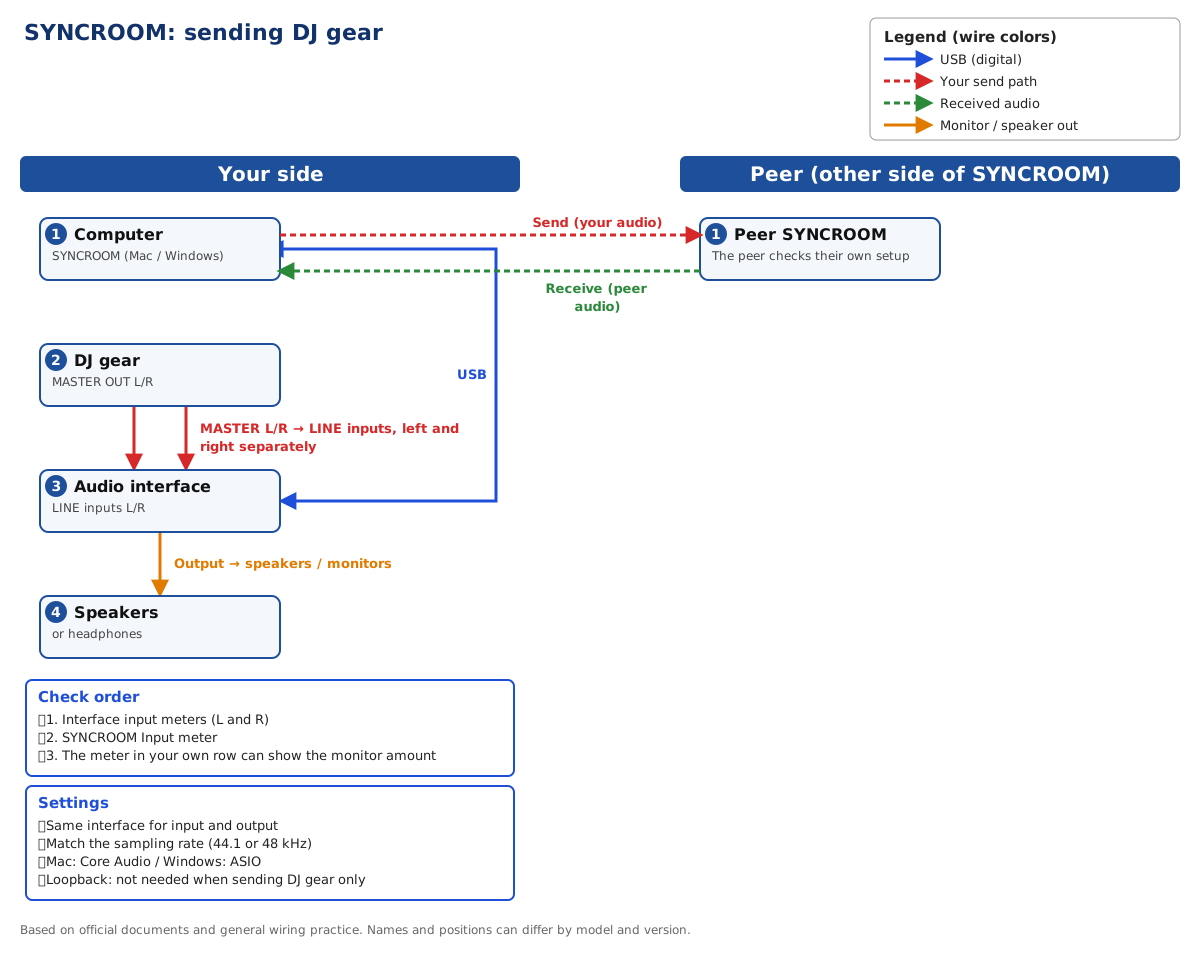
- In SYNCROOM Settings > Audio use the same interface for input and output. Match the sampling rate (44.1 kHz or 48 kHz) between the interface and SYNCROOM.
- On a Mac set the audio device to Core Audio. Start with the smallest buffer size that does not break up, and raise it step by step if you hear noise.
- On Windows choose ASIO and install the interface ASIO driver. SYNCROOM recommends 64-128 samples; raise it step by step if the sound breaks up. If ASIO is not available, WASAPI shared mode is 44.1 kHz only and exclusive mode silences other apps. DirectSound cannot be adjusted.
- Check the interface input meter first, then the SYNCROOM Input meter. The meter in your own row can show the monitor amount.
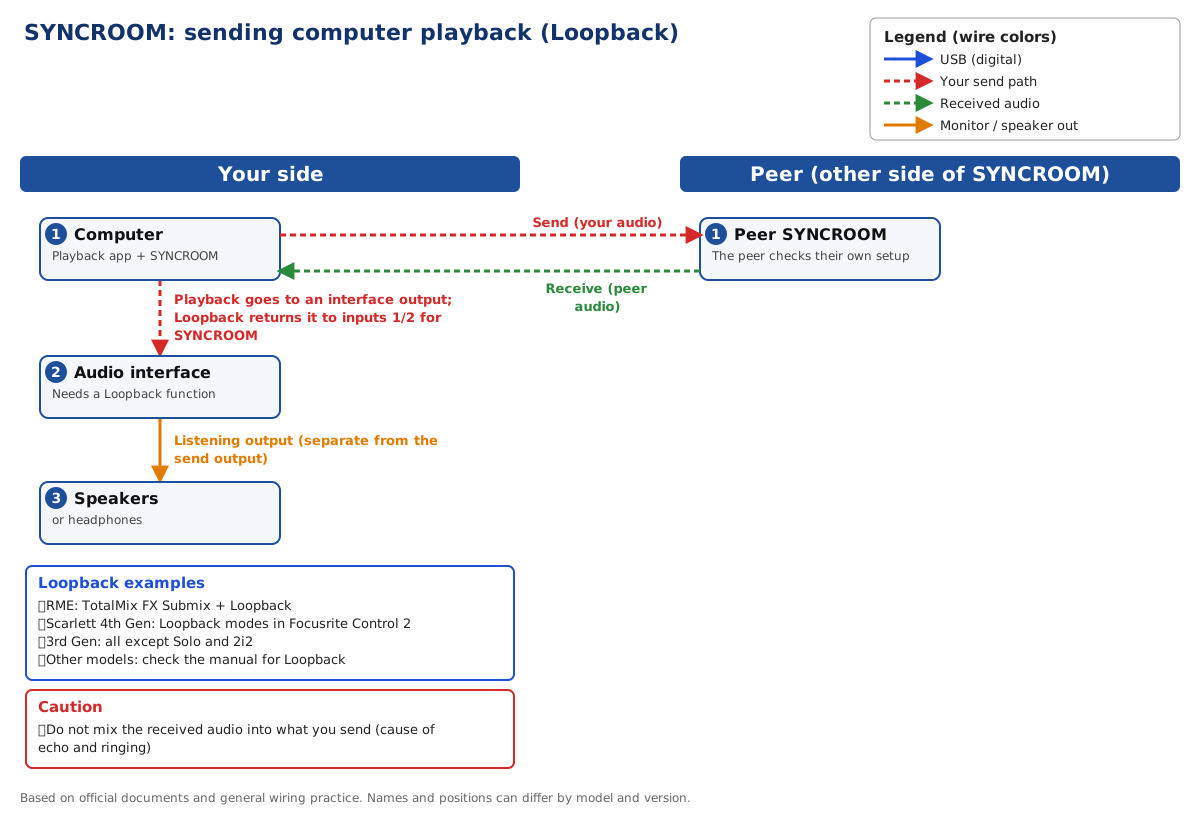
- Do not mix the sound you receive from the other player into what you send. If you do, they hear themselves back as echo or a ring.
I want to send a mic or instrument
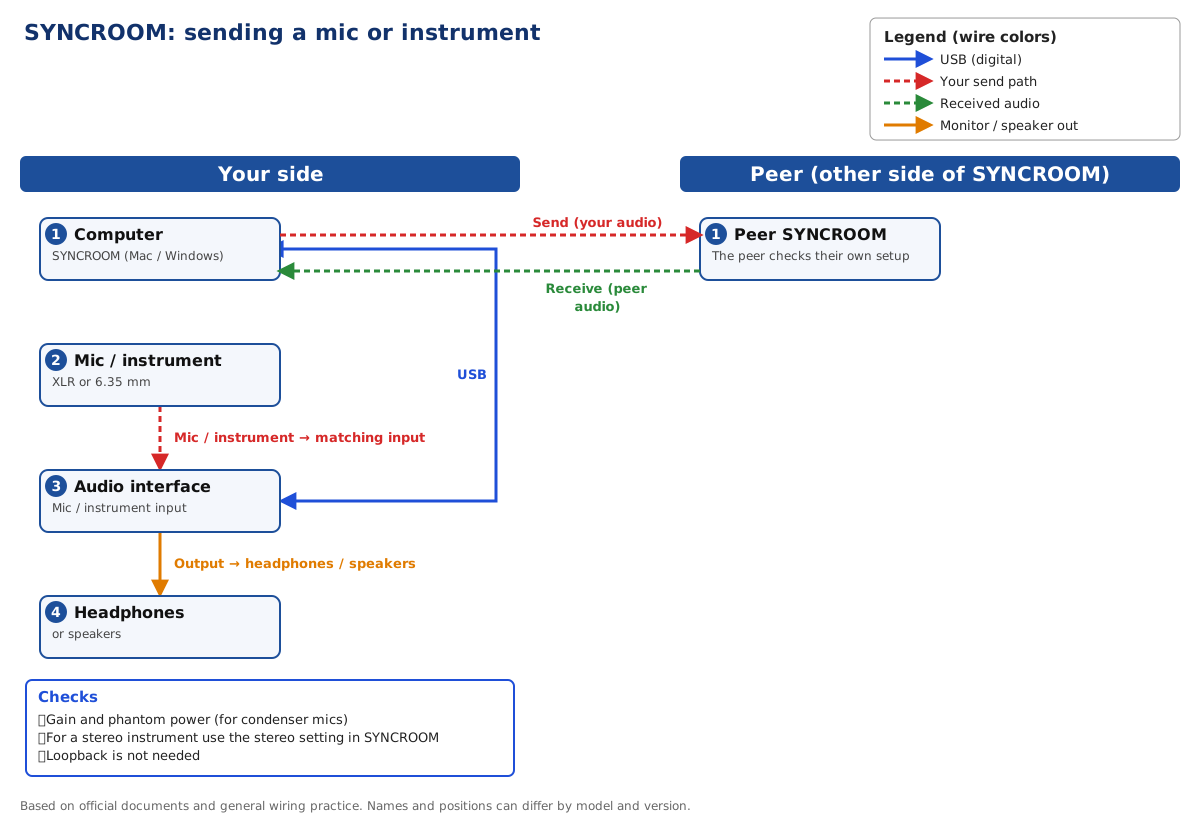
- Connect the mic or instrument to an interface input and check that the interface input meter moves. Check gain and phantom power here too.
- In SYNCROOM select the input channel you used. For a stereo instrument use the stereo setting (Handle as stereo). Labels differ by version.
- Loopback is not needed. First confirm you can send in this simple form.
I want to send computer playback or DJ software audio
- Send the playback app to the interface output. The mix built inside the interface is returned to an input by Loopback.
- RME interfaces such as Babyface Pro use TotalMix FX: pick an unused output and turn Loopback on. See the Babyface Pro SYNCROOM guide.
- Scarlett 4th Gen uses the Loopback modes in Focusrite Control 2 (Audio Capture, Video Call, Stream). Among 3rd Gen models, everything except Solo and 2i2 has Loopback.
- For other interfaces check the manual for a Loopback item. If there is none, virtual audio device software is an option, but compatibility with SYNCROOM varies, so test with a short recording first.
I want to send DJ gear
- Connect DJ MASTER L/R to the left and right LINE inputs of the interface separately. Check the input sensitivity in the interface manual.
- Check that the interface input meter moves on both sides.
- If you return the other player to your gear, wire it so it does not mix into what you send. See the B2B guide.
If it is still not solved
Note the model, the OS and software versions, how far the meters moved and what you tried, then contact the manufacturer support. Do not assume a replacement or a fault before the cause is clear.
Official sources and scope
- Yamaha SYNCROOM 2 desktop manual
- Focusrite: Scarlett 4th Gen using Loopback
- Focusrite: Which Focusrite interfaces feature Loopback
- RME: TotalMix FX Recording FX with Loopback
Checked 2026-10-24. Details can differ by model and version, so also check the official documents.